The Reader
Tap any comic and hit Read Now to enter the reader. It opens full-screen with the controls hidden. Tap once anywhere to show or hide them.
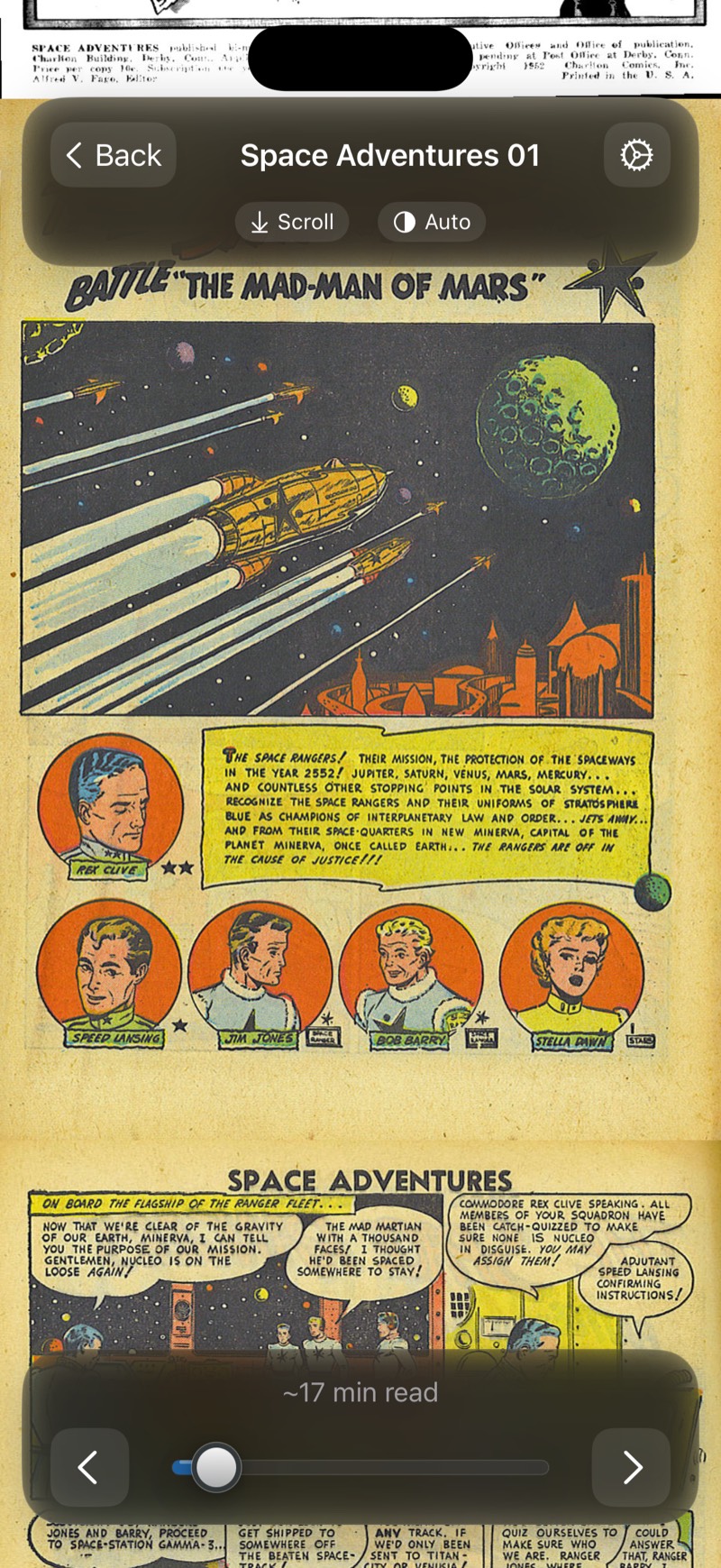
Controls
The top bar has the back button, the comic title, quick pills for reading mode, direction, and theme, and a gear that opens the full settings. The bottom bar has previous and next page buttons, a scrubber to jump anywhere in the comic, and an estimated time to finish.
Reading Modes
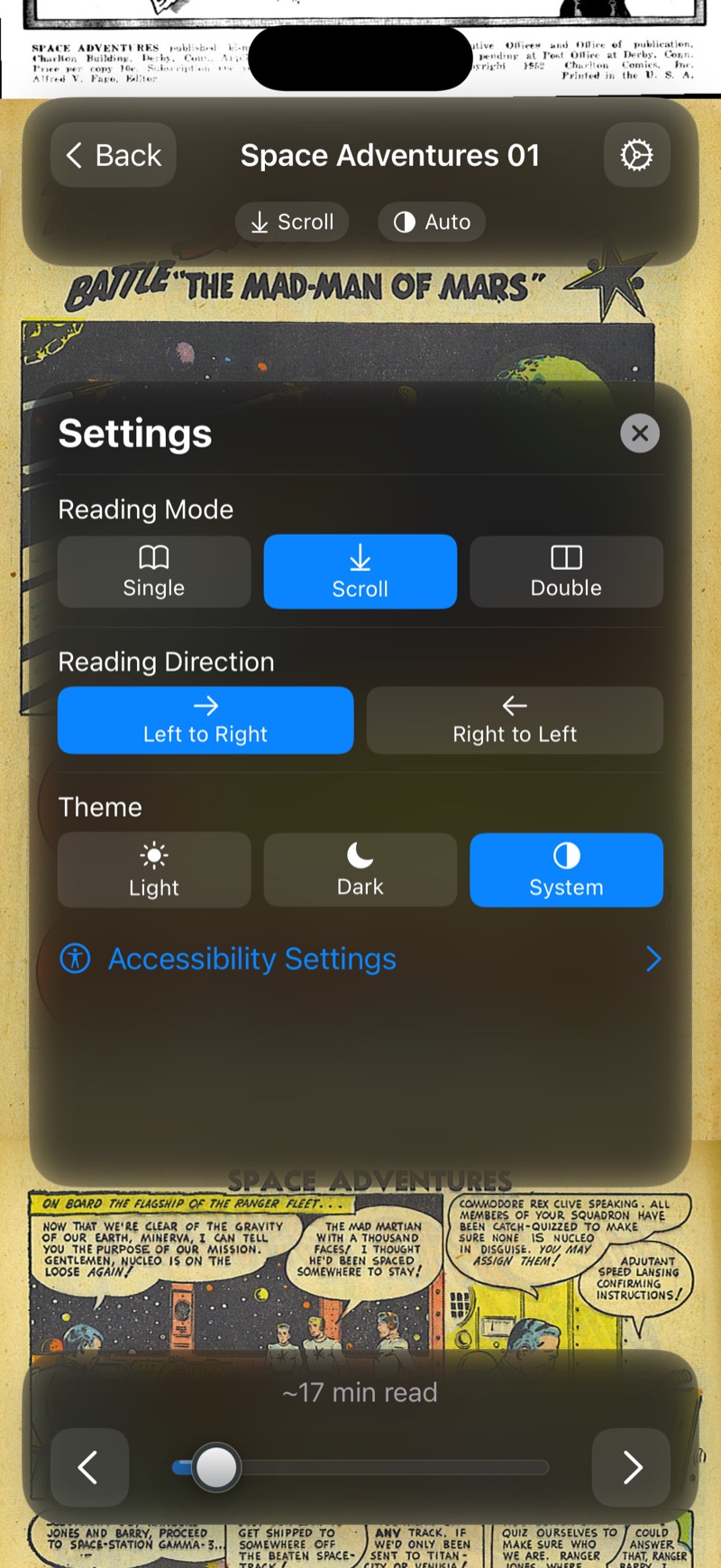
Open the gear (or tap the mode pill) to switch between four modes. Single Page shows one page at a time and you swipe to turn, the classic experience. Scroll is continuous vertical scrolling, great for webtoons. Double Page shows two-page spreads, ideal on iPad and in landscape. Guided reads panel by panel (see below). In Single Page, Two Pages on Wide Screens switches to spreads by itself when the screen is wide enough.
Guided Mode
ComicVerse detects the panels on each page automatically, so Guided mode can take you through a page panel by panel. This is perfect for dense pages on an iPhone screen. Panel detection runs on demand for the page you're viewing, and the reader then moves from panel to panel with smooth transitions. If a page's panels come out wrong, Adjust Panels in the reader settings lets you correct them for that page.
Reading Direction
Choose Left to Right or Right to Left (for manga) in the reader settings. The direction applies to page turns in the paged modes.
Theme
Pick Light, Dark, or System for the reader surround. The theme pill in the top bar cycles it quickly.
Zoom
Pinch to zoom on any page. ComicVerse re-renders the page at full quality while zoomed, so fine linework and lettering stay sharp.
Progress
Your position saves automatically, down to the page, panel, and percentage. Leave mid-issue and continue from the comic's detail page or straight from Home. When you reach the end, the reader offers quick actions for what to do next.