Organizing Your Library
Once you've imported comics, ComicVerse offers powerful tools to organize and manage your collection. Whether you have a small personal library or thousands of comics, these features help you find and track everything.
View Modes
Switch between different views to browse your library in the way that works best for you.
Grid View
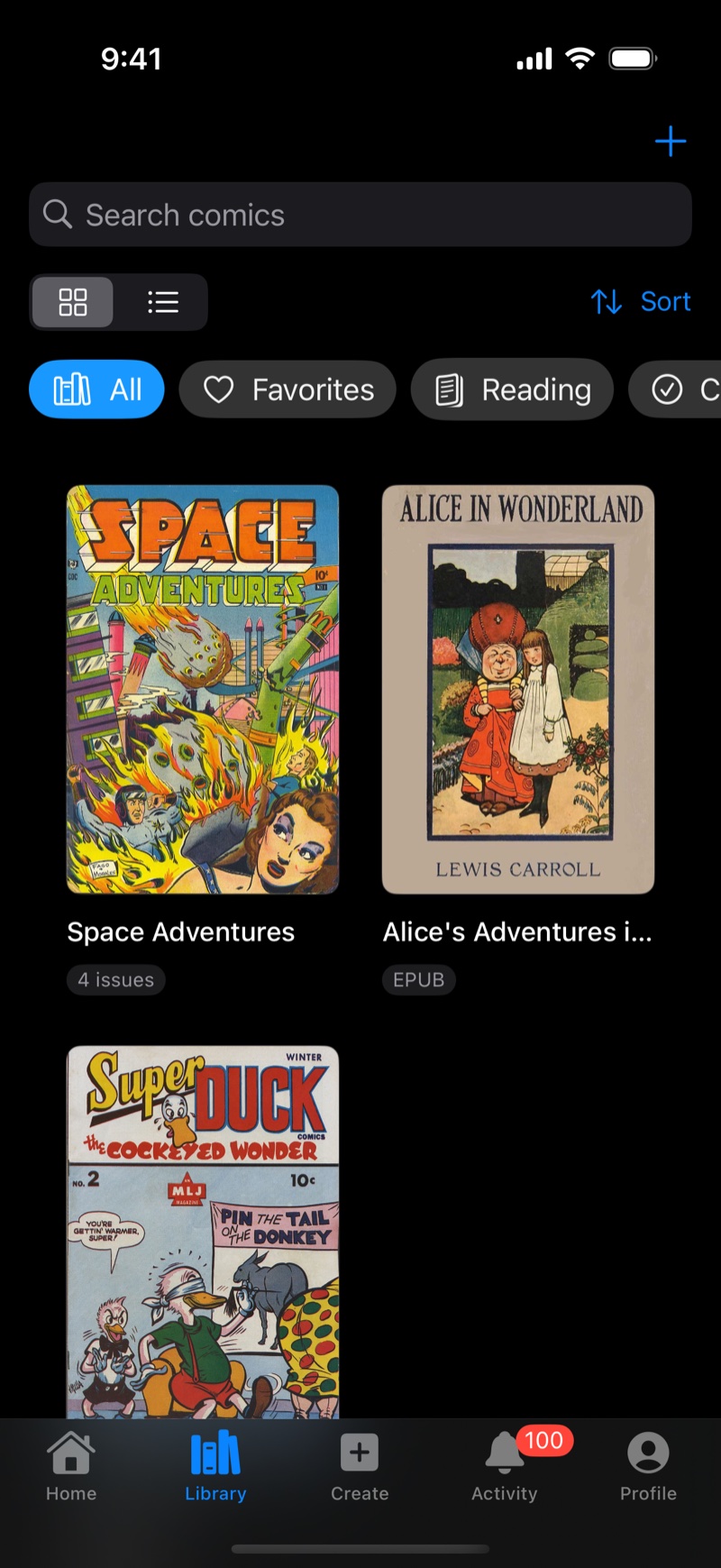
Displays comics as a grid of cover images, similar to a bookshelf.
- Best for: Visual browsing and recognizing comics by their covers
- Shows: Cover art, title, and reading progress badge
- How to enable: Tap the grid icon in the Library toolbar
List View
Shows comics in a detailed list format with metadata.
- Best for: Seeing detailed information at a glance
- Shows: Cover thumbnail, title, file type, progress, and last read date
- How to enable: Tap the list icon in the Library toolbar
Filtering Comics
Quickly filter your library to show only the comics you want to see. Filter buttons appear at the top of your library.
Available Filters
| Filter | What It Shows |
|---|---|
| All | Every comic in your library |
| Favorites | Comics you've marked with a heart |
| Reading | Comics you've started but not finished (progress between 1-99%) |
| Completed | Comics you've finished reading (100% progress) |
| Unread | Comics you haven't started yet (0% progress) |
To apply a filter:
- Scroll to the top of your Library
- Tap the filter pill you want (e.g., "Favorites" or "Reading")
- The library updates to show only matching comics
Filters remember your last selection, so your preferred view is ready when you return to the Library.
Sorting Comics
Organize how your comics are displayed using the sort menu.
Sort Options
- Date Added (default) - Newest imports appear first
- Title - Alphabetical order by comic name
- File Type - Groups by format (CBZ, CBR, PDF, etc.)
- Last Read - Most recently read comics first
To change sort order:
- Tap the Sort button (arrow icon) in the Library toolbar
- Select your preferred sort method
- The library reorganizes immediately
Search
Find specific comics quickly using the search bar.
- Pull down on your Library to reveal the search bar
- Type the comic title or keyword
- Results update as you type
- Clear the search to return to your full library
Favorites
Mark your favorite comics for quick access later.
Adding to Favorites
Method 1: From Library
- Long-press on a comic cover
- Select Add to Favorites from the menu
Method 2: From Comic Details
- Tap a comic to open its details
- Tap the Favorite button (heart icon)
- The comic is marked with a filled heart
Viewing Favorites
- Go to your Library
- Tap the Favorites filter pill
- See all your favorited comics
Removing from Favorites
- Open the comic's details
- Tap Remove Favorite button
- Or use the same long-press menu from the Library
Favorites sync across devices when using iCloud Drive storage.
Collections via OPDS Servers
Collections in ComicVerse are managed through OPDS servers, allowing you to browse organized categories and series from your comic servers.
Browsing Collections
- Navigate to Library and tap the + button
- Select Web Server
- Choose your OPDS server from the list
- Browse the catalog structure:
- Navigation entries represent collections and categories
- Tap on a collection to see the comics it contains
- Stream or download comics from the collection
Benefits of OPDS Collections
- Server-managed: Collections are organized on your OPDS server, not taking up space on your device
- Centralized: Manage large collections in one place, accessible from any device
- Pre-organized: Many OPDS servers automatically organize comics by publisher, series, and metadata
- Scalable: Browse thousands of comics without importing them all locally
Use your local Library for comics you're actively reading (20-50 items) and Favorites for standout individual issues. Use OPDS server collections to store and organize your full collection by publisher, series, or reading lists. This keeps ComicVerse fast while giving you instant access to your entire library.
Reading Progress
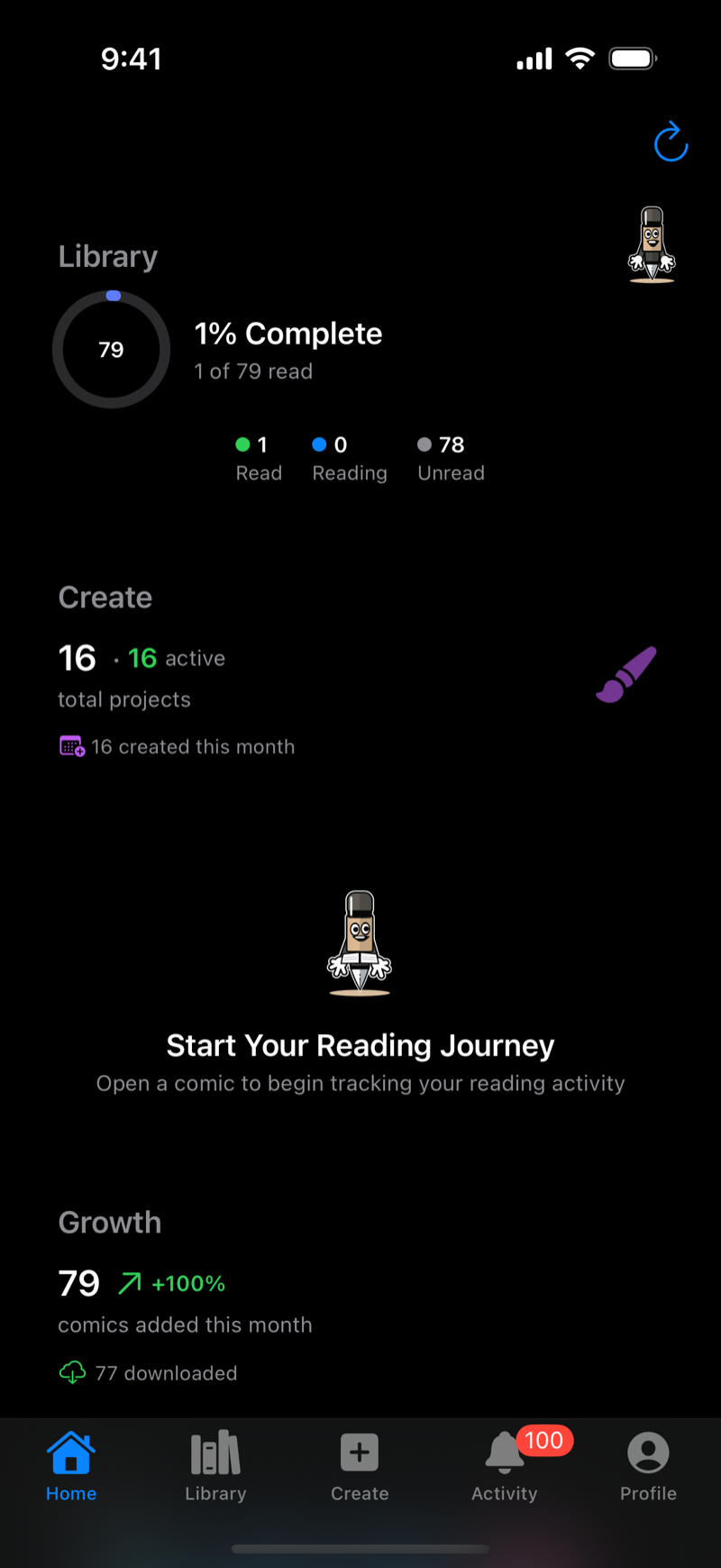
ComicVerse automatically tracks your reading progress for every comic.
How It Works
- Automatic tracking: Progress updates as you turn pages
- Syncs across devices: Pick up where you left off on any device (with iCloud)
- Visual indicators: Progress badges show on comic detail page
- Filter by status: Use Reading/Completed filters to see progress
Progress States
- 0% - Unread (white circle icon)
- 1-99% - In Progress (blue progress ring)
- 100% - Completed (green checkmark)
Manual Progress Reset
To restart a comic you've finished:
- Open the comic's details
- Scroll to Reading Progress section
- Tap Reset Progress
- Confirm the reset