Importing Comics

ComicVerse doesn't include any comics. Add your own to start reading, or head to the Create tab and generate one.
This guide covers getting comics into ComicVerse, whether they live on your device, in iCloud Drive, or on a comic server.
Import Methods
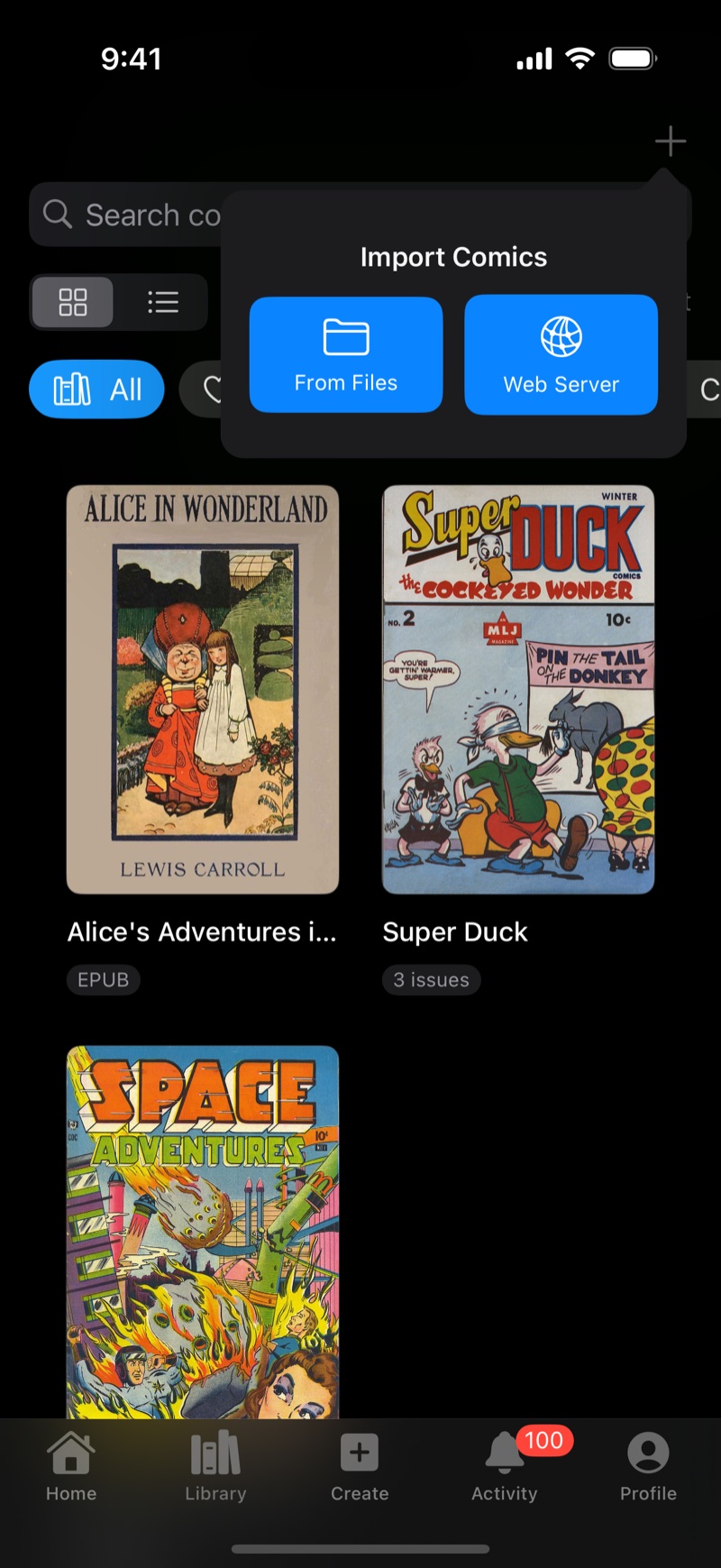
Open the Library tab and tap the + button. You get two options.
From Files lets you pick comic files from the Files app, whether they're on your device, in iCloud Drive, or in any storage provider that appears in Files.
Web Server opens the OPDS browser, where you can connect to comic servers and stream or download from them. Dropbox is also available under Cloud Storage in the same browser.
From Files
Go to the Library tab, tap +, choose From Files, select one or more files, and tap Open.
This supports CBZ, CBR, CB7, CBT, PDF, and EPUB. See Supported Formats. You can multi-select to import several comics at once.
From an OPDS Server
OPDS is the standard catalog protocol used by self-hosted comic servers like Komga, Kavita and Calibre-Web. It's the recommended way to manage a large collection. Keep everything on your server and stream or download only what you're reading.
- Go to the Library tab, tap +, then Web Server
- Tap + to add a server. Type its address, such as
comics.example.com, plus your sign-in details if it needs them. Tap Connect, then Add This Server - Tap the server to browse its catalog by category and series
- If your server supports catalog search, a search field appears above the list. Searching runs on the server, so it covers your whole library rather than only what's on screen
- On any comic, tap Stream (▶) to read it straight from the server, or Download (↓) to save it to your library for offline reading
For Komga, type https://<your-server-url> and sign in with your Komga email address and password. Kavita is the exception. It puts a per-user API key in the URL, so copy the personal OPDS URL from your Kavita user settings and paste that instead, leaving the password blank. Komga runs a free demo server at https://demo.komga.org with a small sample library you can try, and the sign-in details are on Komga's introduction page.
Step-by-step setup for each server, including what to check when a connection fails:
- Connect ComicVerse to your Komga server
- Connect ComicVerse to your Kavita server
- OPDS reader for iPhone and iPad for what OPDS is and how streaming works
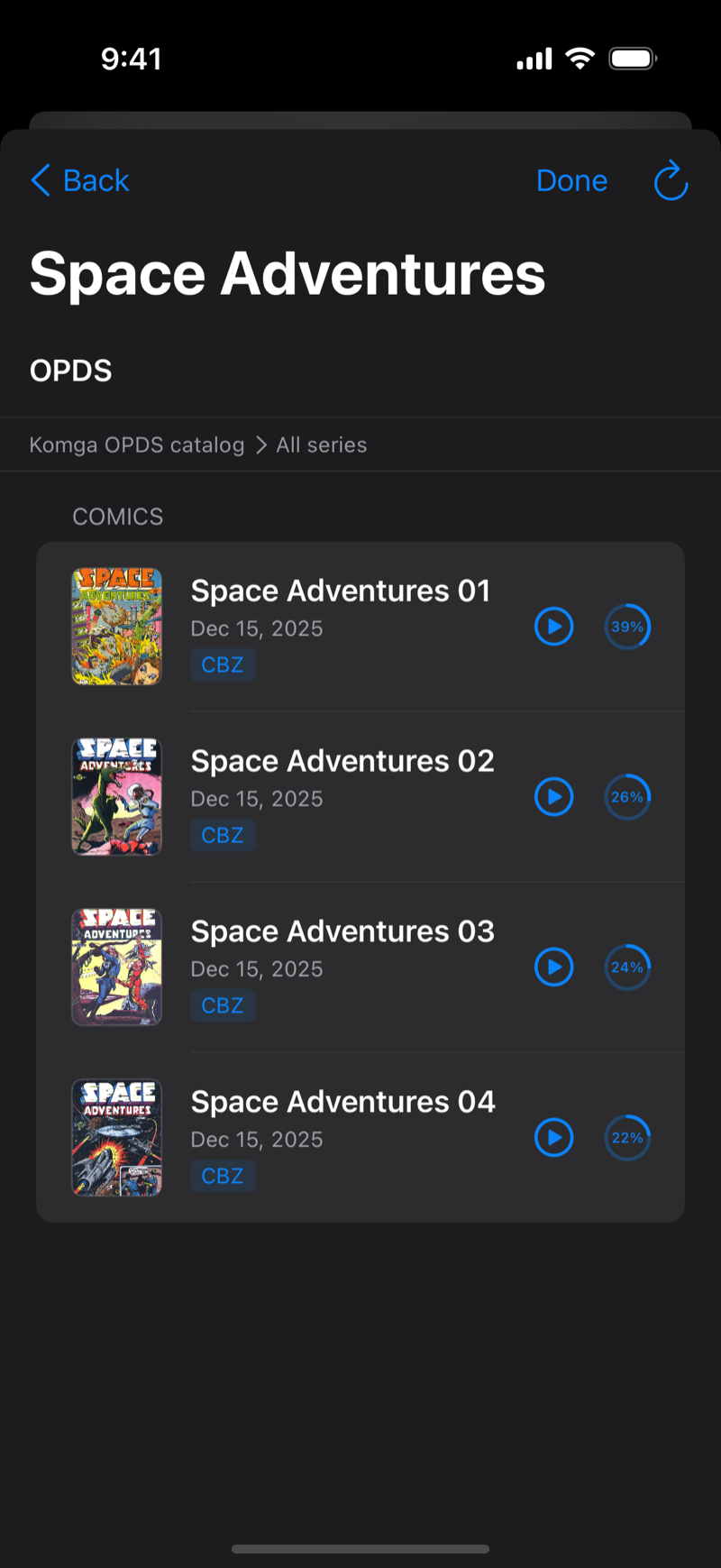

Streaming starts instantly and uses no storage, which is ideal at home on Wi-Fi. Downloading makes the comic available offline and adds it to your library. Downloads run in the background and appear under Activity → Downloads, where failed downloads can be retried.
From Dropbox
Inside the OPDS browser (Library → + → Web Server), the Cloud Storage section offers Dropbox. Connect your account, browse your folders, and import comics directly.
Where Comics Are Stored
Comics are always stored locally on your device, in a folder you can see in the Files app under On My iPhone/iPad → ComicVerse. This means reading works fully offline, your comic files are never uploaded anywhere, and you can add or pull out files via the Files app or Finder.
If you sign in, your reading progress and favorites sync across devices so you can pick up where you left off. The files themselves don't sync. See the FAQ for details.
After Importing
Imported comics appear in your Library with cover art extracted automatically. Issues from the same series stack together. Tap a comic to see its details, then tap Read Now. Progress tracks automatically as you read.
Next steps:
- Organize Your Library for filters, sorting, favorites, and series
- Supported Formats for format details and tips
- Troubleshooting if an import fails