Canvas Workspace
The canvas is where you refine and finish your comic pages. It uses the standard 2:3 comic-page aspect ratio and keeps the interface minimal. Two floating buttons open the drawing toolbar and the panel templates, and the Refine button runs AI generation.
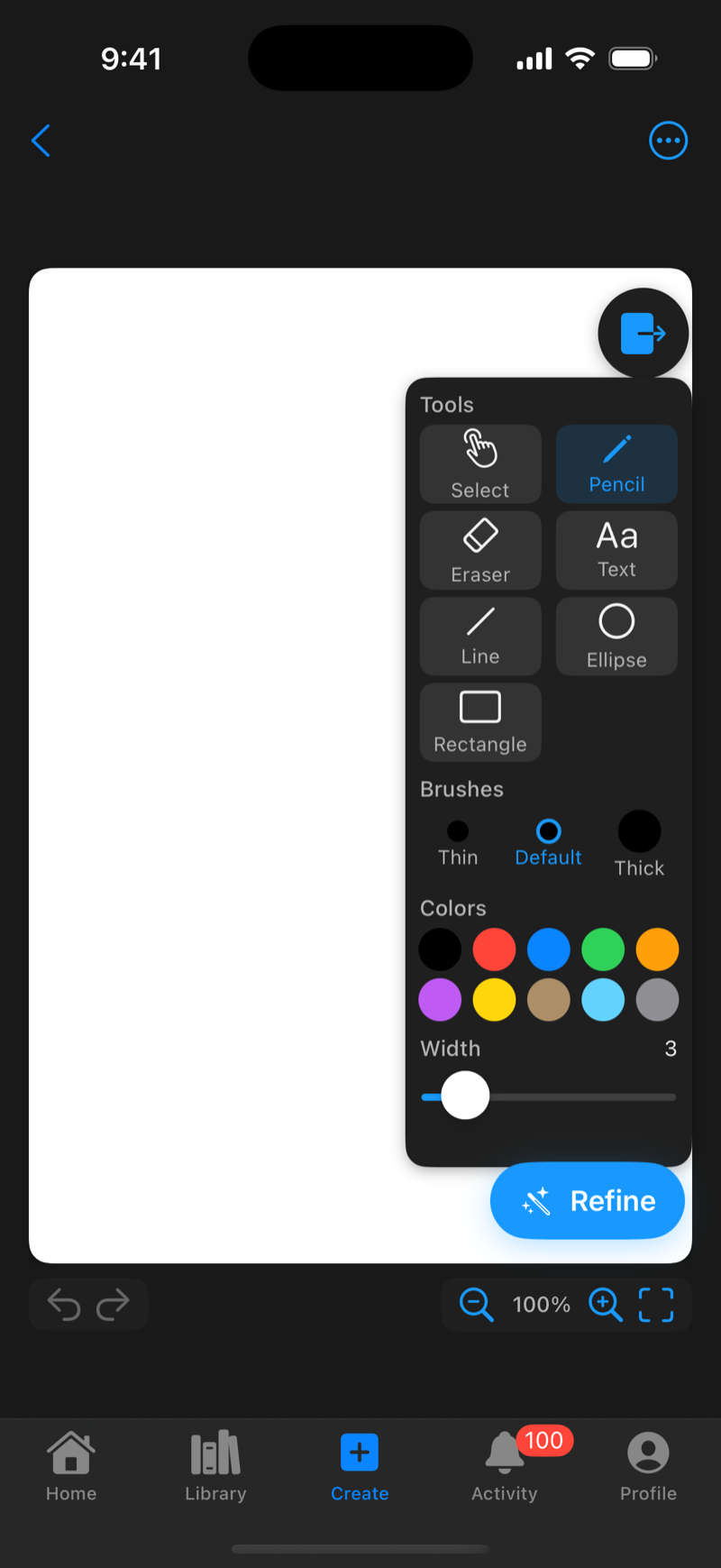
Drawing Tools
The toolbar contains seven tools.
- Select lets you tap a text element and drag it to a new position. Only text can be moved. Drawn strokes can't be repositioned after drawing.
- Pencil is freehand drawing with adjustable width (1 to 20 pt), ten colors, and three brush presets named Thin, Default, and Thick
- Eraser removes whole strokes. Tap or drag across any stroke to delete it
- Text places dialogue or captions where you tap, with adjustable font size (8 to 48 pt) and color. Tap existing text to edit it
- Line draws straight lines from where you touch to where you let go
- Ellipse grows outward from the center as you drag, outline or filled
- Rectangle goes corner to corner, outline or filled
All shape tools use the current width and color settings.
Panel Templates
The template button offers six page layouts. None, Single, Two Horizontal, Two Vertical, Three (top split), and Four (2×2 grid).
Templates are non-destructive guides. Draw inside or across them, switch templates without losing artwork, and toggle them off anytime.
Pages
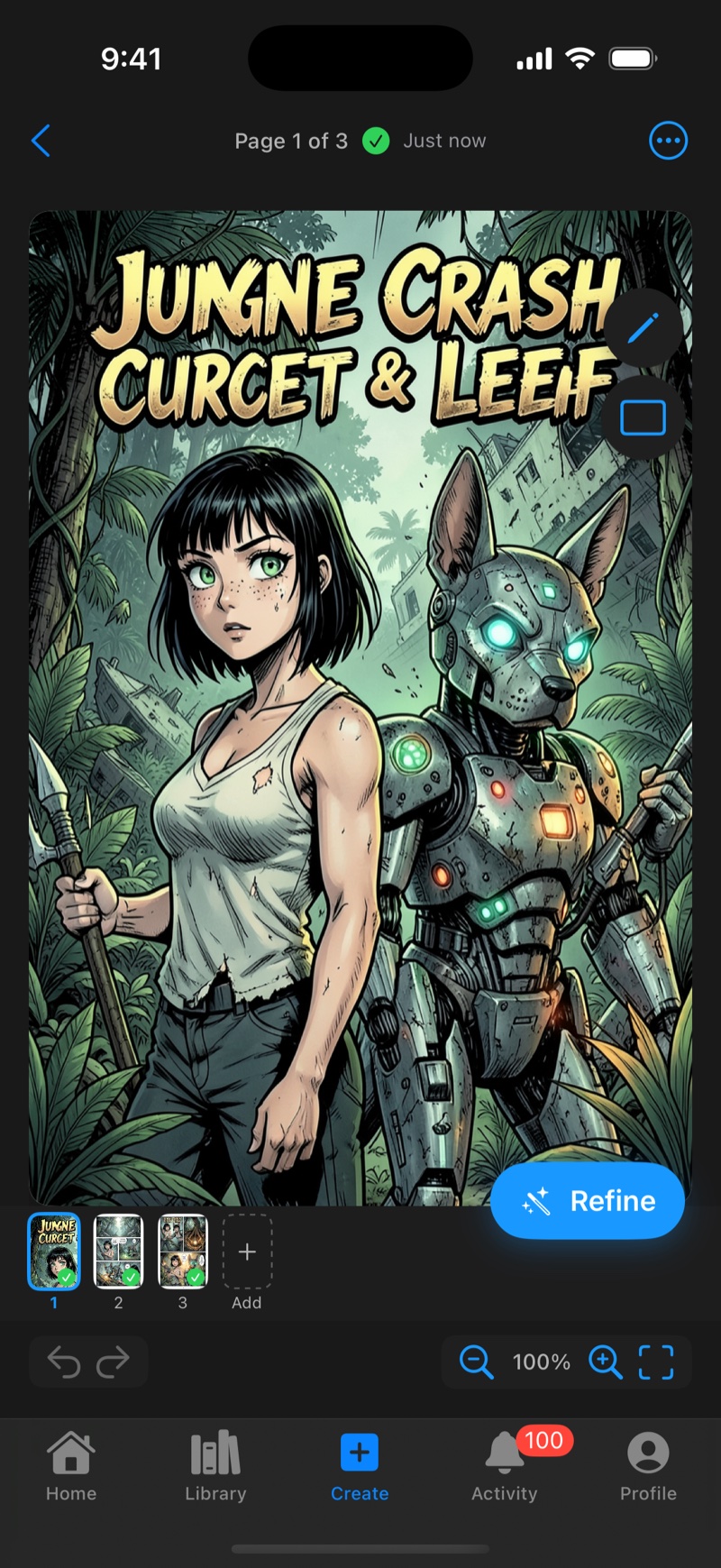
Projects can have multiple pages.
- Add a page from the canvas menu (⋯), or generate up to 5 pages at once with AI
- Navigate pages with the page strip. The indicator shows "Page X of Y"
- Each page keeps its own artwork and can be refined independently
Undo, Zoom, and Autosave
Undo and redo cover up to 100 steps via the bottom-left buttons. Zoom runs from 25% to 400% with the bottom-right controls or a pinch, and a fit button resets the view. Autosave runs as you work. The top indicator shows orange for unsaved changes and a green check with the last-saved time.
Canvas Menu
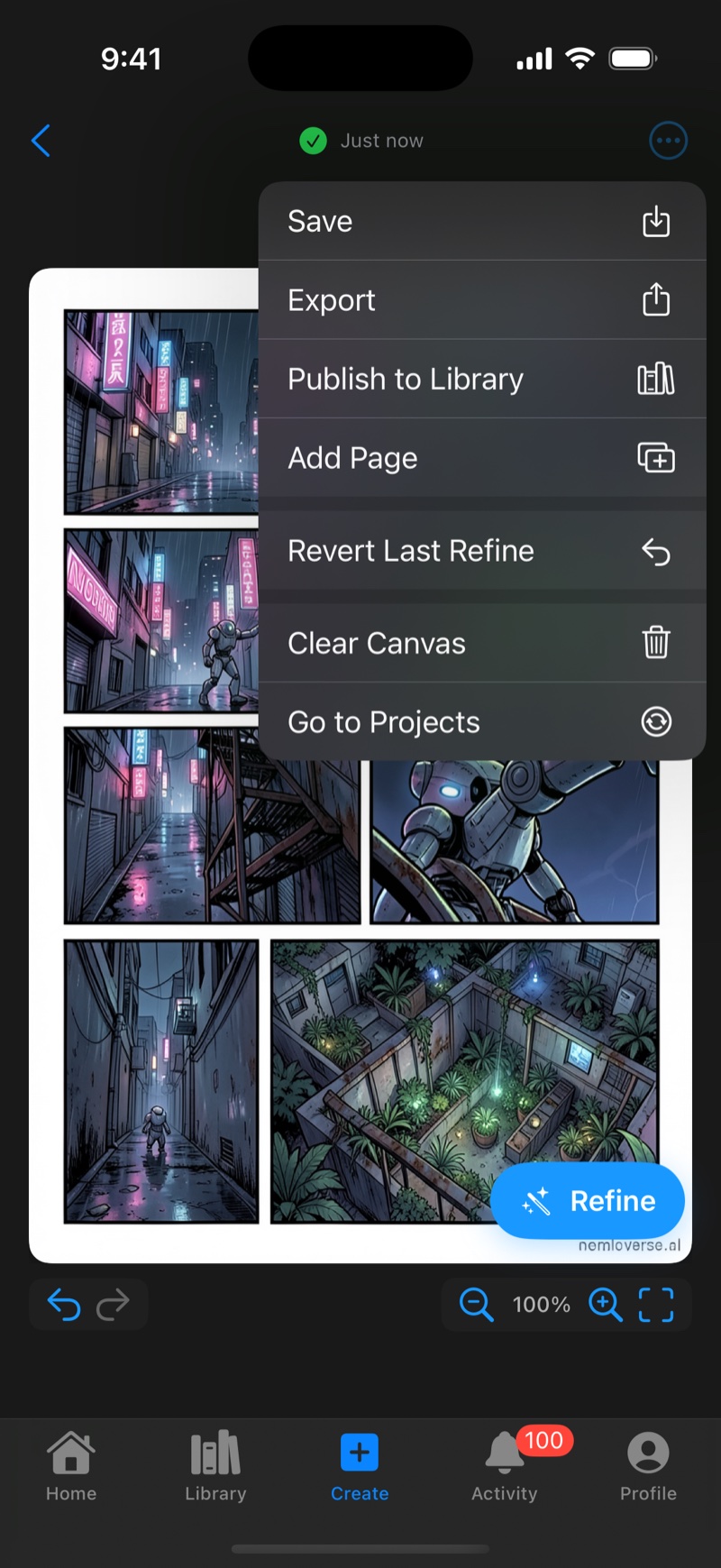
The ⋯ menu in the top-right contains the following.
- Save names the project and adds tags
- Export shares the page as an image, or the whole project as a CBZ
- Publish to Library adds the finished comic to your library
- Add Page appends a new blank page
- Revert Last Refine restores the page to how it was before the last AI generation
- Clear Canvas removes everything on the current page. It asks for confirmation and can't be undone
- Go to Projects returns to the projects list
Tips
Use thin brushes for detail work and zoom out to judge the whole page. AI-generated lettering is rarely usable, so erase it and add dialogue with the Text tool instead. And if a generation took the page in the wrong direction, Revert Last Refine gets you back instantly.